
Fax from SAP R/3 Fax and Paging/SMS Interface
SAP’s Fax and Paging/SMS interface [documentation, local cache] allows very simple access to faxing over the InterFAX email-to-fax service.
Simply configure InterFAX as a “fax provider” at domain fax.tc. Documents issued by the SAP interface will be sent as an attachment to an email address in the format FAX=+9999999999@fax.tc (consistent with RFC3192). This email is automatically received by InterFAX and forwarded to its destination.
Interested in testing this on your system? Fill in our evaluation request form with no commitment.
Send a Fax from Box
InterFAX enables you to send faxes directly from your Box account. Do the following to send faxes from Box:
Prerequisites
Install the InterFAX Application in Box
- 1. Login to your Box account
- 2. Go to the InterFAX application
- 3. Click on Add and on the popup message click Okay
Send Faxes from Box
Sending a fax from Box using InterFAX is easy:
- Go to the file you want to fax -> right click on the file line -> more options -> select the “Fax with InterFAX” option.
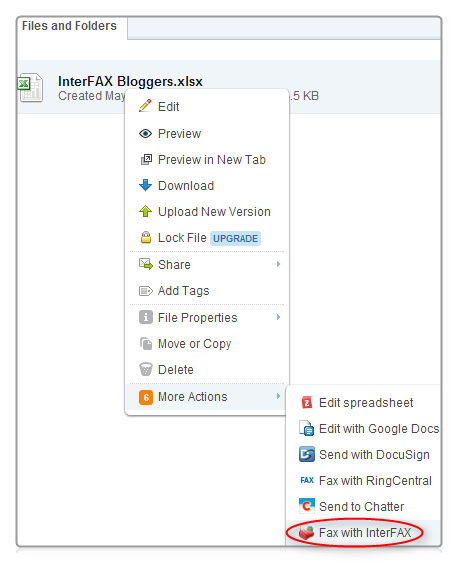
- In the popup box:
- Fill in your InterFAX username and password (if you do not have one – register here)
- Fill in the destination fax number
- Click Okay. Your document is processed. The result message is displayed at the top of your Box files

Check out Supported File Types.
Send a fax from Microsoft Dynamics CRM Web Application
Sending a fax from Microsoft Dynamics CRM using InterFAX is easy:
Prerequisites
Add your email address to InterFAX allowed senders. In order to do that, go to the InterFAX Control Panel, click on Preferences and then on Outgoing.
Actions within Microsoft Dynamics
- 1. In the Navigation Pane, click Workplace and then click Activities
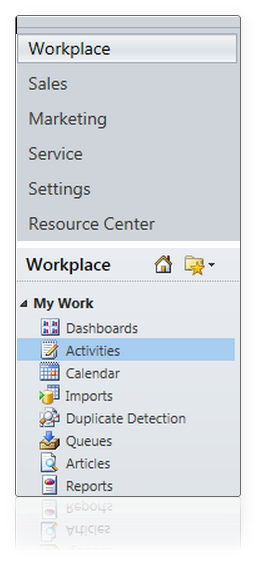
- 2. On the Activities tab, click E-mail
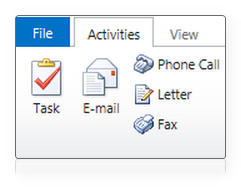
- 3. On the E-mail tab, enter the following information:
- From – Locate and select the sender’s name: InterFAX registered address which is automatically added as the sender ID.
- To – Enter the destination fax number: The format of the number is [area code][fax number]@ fax.tc (e.g. to send a fax to fax number 7766554 in NYC, you must insert the following phrase: 2127766554@fax.tc)
- Subject – Type a subject for your message.
To attach a file
- Save the activity

- Click on the Attach File button
- In the Add Attachment dialog box, click Browse to locate the file that you want to attach.
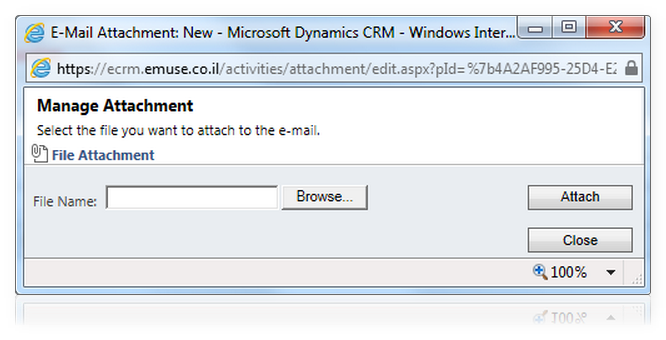
- Click Attach
To send the message immediately, click Send.
The message is sent and the new closed activity appears in Microsoft Dynamics CRM in the Activities area with an assigned message number appended to the subject. The Fax will send within a few minutes
- OR –
To send the message at a later time, click Save and Close. The new draft activity appears in Microsoft Dynamics CRM in the Activities area. You can delete draft messages.
After you save your e-mail message as a Microsoft Dynamics CRM e-mail activity, the saved message can be accessed by anyone who has access to your activities in Microsoft Dynamics CRM.