Build Sales PowerPoint presentations in minutes with Qvidian
Build Sales PowerPoint presentations in minutes with Qvidian

If you’ve ever scrambled to cobble together custom sales PowerPoint presentations in the five minutes before your next meeting starts, then you know the pain of tracking down relevant, customer-facing slides on a too-tight deadline.
For most people, the process goes a little something like this: a deadline is fast approaching and you’re sifting through SharePoint or Google Drive, cutting and pasting slides from previous presentations, and frantically pleading with marketing for support.
But, it’s the modern age and there’s a better (and more efficient) way of building PowerPoint proposals. With Qvidian’s integration with Microsoft PowerPoint, you can bring Qvidian’s award-winning automation, content management, and branding features you need directly to your next PowerPoint presentation.
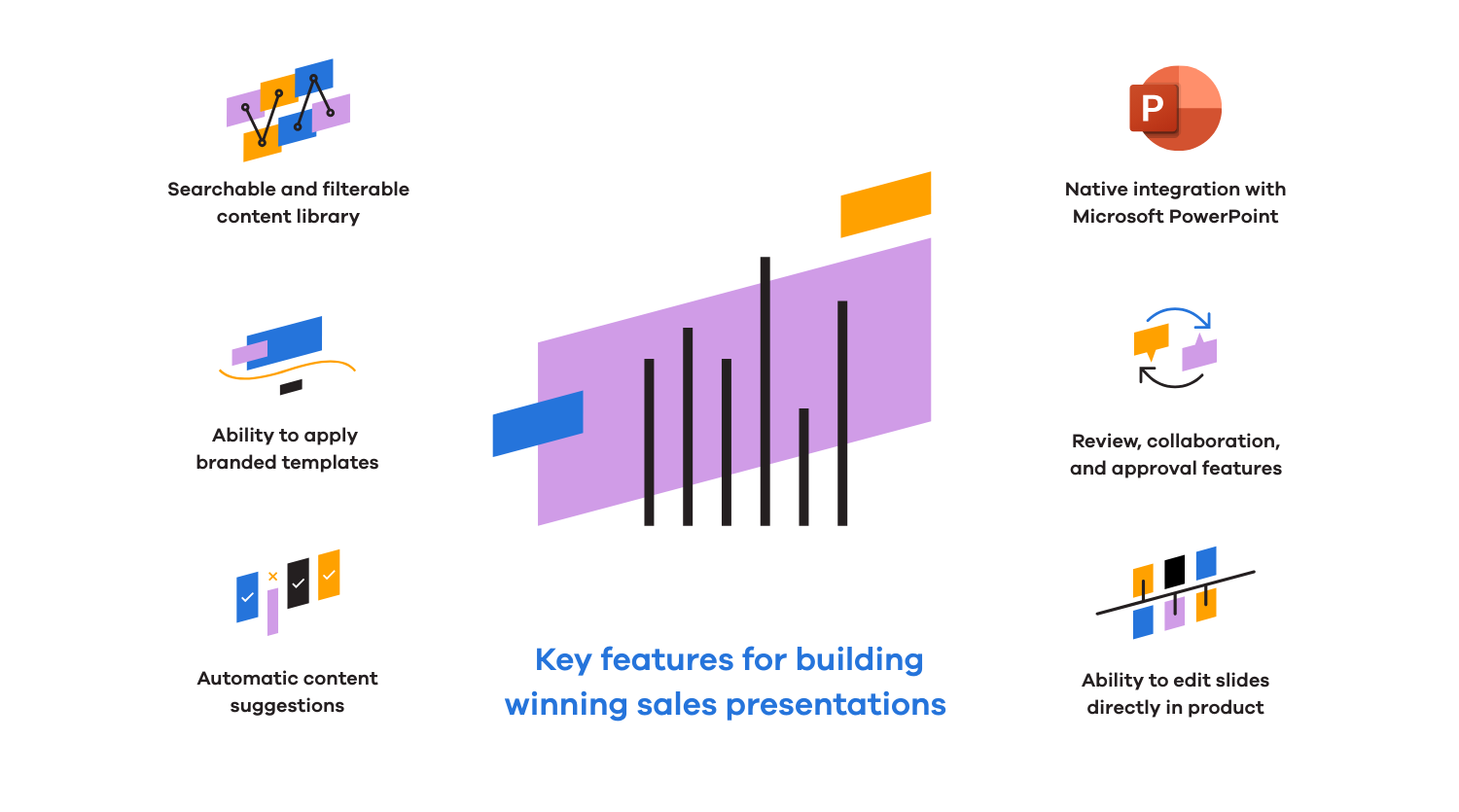
Here’s a breakdown of how, with Qvidian, you can start building winning sales PowerPoint presentations in minutes.
Quickly find customer-facing slides
With Qvidian, you don’t need to race the clock to clean up a presentation that includes a jumble of old slides with different branding and messaging. You also don’t have to worry about accidentally including information about discontinued products or outdated logo slides highlighting former customers.
You can save approved PowerPoint slides in Qvidian’s library. Qvidian stores complete slide decks, like “Meet the Company” and “Product Intro” presentations, and individual slides. And you can organize slides in Qvidian using both tags and folders, so you can search or browse to assemble the most effective presentation for your opportunity. (You can also permission this presentation content so users only see the slide options for their line of business or use case.)
Automate the creation of PowerPoint presentations with Qvidian
Using Qvidian as a library for approved PowerPoint slides is a substantial time-saver, but don’t stop there. You can unlock even more value by creating shell sales PowerPoint presentations for your most common presentation types, like “First Call” and “Product Overview” decks.
With these shell presentations, once you’re in Qvidian, you only need to enter high-level information about your opportunity . From there, Qvidian recommends the most relevant slides to include in your presentation. Here are some of the highlights of automating sales PowerPoint presentations with Qvidian.
Update content, directly from PowerPoint
When your products, service, and business change, so should the content in your library. With Qvidian, making changes to PowerPoint slides is easy. In the library, simply click the PowerPoint icon on the content record you want to edit, and Qvidian will open the record in PowerPoint so you can adjust, tweak, fine-tune, and save it when you’re done.
Once finished, your content will automatically update with a new revision tracked, making it even easier to keep content accurate and compliant.
Build your next presentation using Salesforce data
With Qvidian’s included Salesforce integration, you can click a button in your CRM to start building a custom PowerPoint presentation in Qvidian. Based on the Salesforce contact, account, or opportunity record details, Qvidian automatically offers the user the document options that match the opportunity.
Qvidian in action:
From Salesforce, you click to create a PowerPoint presentation in Qvidian. Since the country for the account is noted as “U.K.” in Salesforce, Qvidian automatically surfaces the versions of your slides written in UK-English. And, since the account’s industry is “SaaS/Technology,” Qvidian offers the user approved case study slides from your SaaS customers.
Qvidian also reads the account name in Salesforce and automatically inserts it into placeholders in the presentation content. This way, you save time and don’t have to worry about typos or cut and paste errors.
Rather than spending hours manually searching for content and personalizing it, Qvidian does the tough work for you, giving you precious time back for other tasks.
Automatically add the best slides
Qvidian can automatically include the most relevant slides based on the selections you make. Rather than searching through all your available slides to decide what to include, simply check a few boxes in Qvidian, and it adds the most relevant content automatically. This way, you can build draft presentations in minutes and lead with your most persuasive content.
You can always add additional slides too! If you start with a base of slides from Qvidian but still want to add your favorite slide into the mix, just drag and drop it from your computer into Qvidian. (Your marketing team probably prefers that you stick to the approved slides in your Qvidian library, but we won’t tell.) After you add a slide from your computer, you can also submit it to your content manager using the Submit Content widget on the Qvidian home page, so they can add the slide to your library for next time.
Qvidian in action:
You start from a pre-created Qvidian PowerPoint presentation shell. Under the “Products” heading, you check a box next to “Product D.” Qvidian suggests three slides that provide an overview of Product D. Next, under the “Pain Points” heading, you select “Collaborating Virtually.” Based on your selection, Qvidian automatically showcases two case study slides that address overcoming that pain.
To round out your sales presentation, you select from one of three recommended title slides and check a box to include an approved “Thank You” slide at the end of the deck. Without running a single search, you built a compelling and complete sales presentation.
Go from idea to custom PowerPoint presentation in minutes
Including predesigned slides from your Qvidian library may get you most of the way to a final sales presentation, but Qvidian can also automate the creation of individual slides. Let’s explore three of the primary ways Qvidian helps you customize slides in your PowerPoint presentations.
- Dynamic Slides: Based on your selections, Qvidian can populate a custom slide including the wording of each selection in your presentation. For example, you might choose the business issues a prospect is experiencing. Based on your selections, Qvidian will build a custom slide that lists those issues. If you change your selections in Qvidian later, Qvidian will automatically update the slide when you build your presentation again.
- Data Entry Screens: Qvidian PowerPoint presentations can include data entry screens that prompt you to type in opportunity-specific information. Qvidian then adds the information you provide to placeholders in your presentation shell to customize slides.
For example, a data entry screen titled “Next Steps” might have fields ”,“ prompting you to add dates for the next steps in the sales process. Qvidian then inserts those dates into the “Next Steps” section in your presentation.
With data entry screens, you can enter all the field values once and Qvidian will populate your entries throughout the presentation. This way, you don’t have to sift through all your slides to fill in placeholders and you won’t mistakenly include blank slides or forget to remove old slides with details from previous opportunities.
- Qvidian’s PowerPoint Integration: Thanks to Qvidian’s close integration with Microsoft Office, you always have the flexibility to build your presentation directly in PowerPoint. Just click the Qvidian icon in your PowerPoint ribbon to launch Qvidian for PowerPoint. Then you can search the Qvidian library and select slides for your presentation without ever leaving PowerPoint. (You’ll need to install the PowerPoint add-in to use this feature.)
If you’re working with a team, you can even collaborate in real-time through Office Online and pull in experts to review and update slides.
Start building sales presentations with Qvidian
Getting started with creating sales PowerPoint presentations in Qvidian is simple. If you’re still evaluating Qvidian, a great first step is to contact us for a custom demo. Our sales proposal and presentation experts are happy to answer any questions and show you how Qvidian can meet your unique needs.
We can’t wait to show you how Qvidian can help you create more effective PowerPoint presentations that win more opportunities!

